Two ways to see who is connected
| Method | What it shows | What you need |
|---|---|---|
| Your router's app or admin page | Every client the router has handed an address to, often with MAC address and connection time | The router's admin login |
| A network scanner app on your iPhone | Devices that respond on the network right now, plus names, device types, services and open ports | Only access to the WiFi |
The two complement each other. The router is the authority on who is connected and the only place where you can block a device. A scanner adds detail the router rarely shows, such as what kind of device something is and which services it runs, and it works on networks where you don't have the router password.
How to see connected devices from your iPhone
- Join the correct WiFi. A local scan examines the network your iPhone is using, not every wireless network nearby.
- Allow Local Network access. iOS asks for this permission before an app can communicate with devices on your network.
- Run a discovery scan. Leave the app open while it checks the local address range and listens for devices announcing themselves.
- Review the complete list. Look at names, IP addresses, online status, device types and discovered services.
- Label what you recognise. Give confirmed devices clear names, so a new or changed device stands out next time.
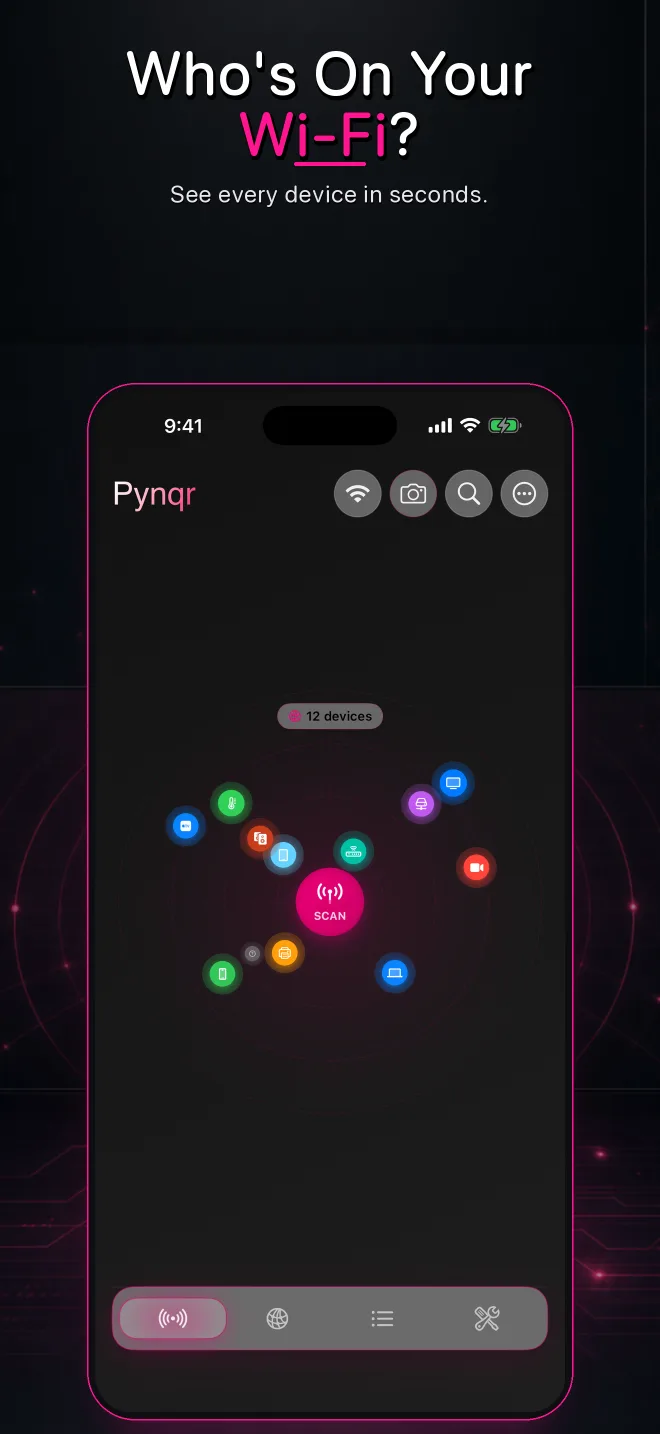
Count first, then identify
Phones, laptops, watches, TVs, speakers, printers, game consoles and smart plugs add up quickly. Count what you expect before you worry about the total, then match each entry to a real device using more than one clue.
What you see in a scan
Pynqr shows each device on a radar and in a list. For each device you get the IP address, a name when the device announces one, the device type and manufacturer when they can be recognised, and whether it is online. Opening a device shows its services and open ports.
Filters help you work through a busy network: show only phones, computers, TVs, printers or routers, only devices that are online or offline, only IP cameras, or only devices that could not be identified.
Why the scan and the router don't always match
- Sleeping devices. Phones and battery-powered gadgets may not answer while asleep. Wake them and scan again.
- Private WiFi addresses. iPhones, Android phones and Windows laptops can use a private or rotating hardware address, so the router may list the same phone more than once.
- Guest networks and client isolation. Devices on a guest network, or on a router that stops wireless clients from seeing each other, may be invisible to a scan.
- Several networks. Mesh systems, separate IoT networks and wired segments can put devices out of your iPhone's reach.
- Stale router entries. Routers often keep devices in the list for a while after they leave.
Match results to your devices
- Temporarily switch a device off and scan again to see which entry disappears.
- Compare the scan with the connected-client page of your router.
- Look for manufacturer hints, names and services that fit the device's purpose.
- Check whether an IP address stays with the same device across scans.
- Don't treat an unfamiliar label as an intruder until more than one clue points that way.
If you find something unfamiliar
Write down its IP address, name, first-seen time and services. Then follow the steps in how to identify an unknown device. Only change the WiFi password when the evidence justifies it, because that disconnects every legitimate device too. Blocking a device, changing the password, disabling WPS and reviewing guest access all happen in your router, not in a scanner app.
Frequently asked questions
Can I see who is on my WiFi without the router password?
Yes. If your iPhone is connected to the WiFi, a network scanner can list the devices that respond on that network. To block a device or change the WiFi password, you still need the router's admin login.
Can I see what other people do on my WiFi?
No. A network scanner shows which devices are connected and which services they offer. It does not show websites visited or messages sent, and Pynqr does not inspect other people's traffic.
Why does the same phone show up twice?
Phones and laptops can use a private or rotating WiFi address. When the address changes, the router can list the same device as a new client. Scanning again and comparing names usually clears this up.
How do I kick someone off my WiFi?
Use your router: block or pause the device in its app or admin page, then change the WiFi password if you think it was shared or guessed. Reconnect your own devices afterwards.
Scan your network privately
Pynqr finds the devices on your WiFi and keeps your network inventory on your iPhone.