How unknown device detection works
A network scanner finds devices by checking which addresses respond on your local network and by listening for devices that announce themselves. It then identifies each device from the clues it gives away: its name, any manufacturer and model details it announces, the services it advertises (Bonjour, UPnP/SSDP) and the ports it has open.
A device is "unknown" when those clues are missing or too generic. That is usually a sign of a quiet device, not a suspicious one. On iPhone there is an extra limit: iOS does not let apps read the hardware (MAC) addresses of other devices, so scanners rely on names, services and ports instead. See how iOS network scanners identify devices for the details.
Start with the available evidence
| Clue | What it can tell you | Why it can mislead |
|---|---|---|
| Name (hostname) | Owner label, model family or operating system | Can be generic, outdated or changed by the user |
| IP address | Where the device sits in your local network | Addresses handed out by the router can change |
| Advertised services | Printing, media playback, smart-home or remote-access role | Not every device advertises services |
| Open ports | Reachable management or application services | An open port is not automatically unsafe |
| First and last seen | Whether the device appeared recently | Sleep and network isolation affect visibility |
What unknown devices usually turn out to be
| Clue in the scan | Often turns out to be |
|---|---|
| A name starting with ESP_ or a manufacturer such as Espressif or Tuya | Smart plugs, bulbs, LED strips, robot vacuums and other small smart-home gadgets |
| No name, but media or casting services | A TV, streaming stick or speaker |
| A name like android-… or a random string | A phone or tablet, often one using a private WiFi address |
| Printing services such as IPP | A printer that was set up without a name |
| A second router-like device | A mesh node, range extender or powerline adapter |
| A web interface on port 80 or 443 and nothing else | Appliances, solar inverters, NAS drives or cameras with a built-in admin page |
A reliable identification checklist
- Find it in your router. Open the router's client list and look for the same IP address or name.
- Check which network it is on. Note whether it is on the main, guest or IoT network.
- Read the services. Printing, media playback or smart-home services quickly narrow down what it is.
- Switch suspects off. Turn off one likely device, wait a minute and scan again.
- Confirm. Switch the device back on and check that the same entry returns.
- Label it. Give the device a clear name once you're sure, so it never shows up as unknown again.
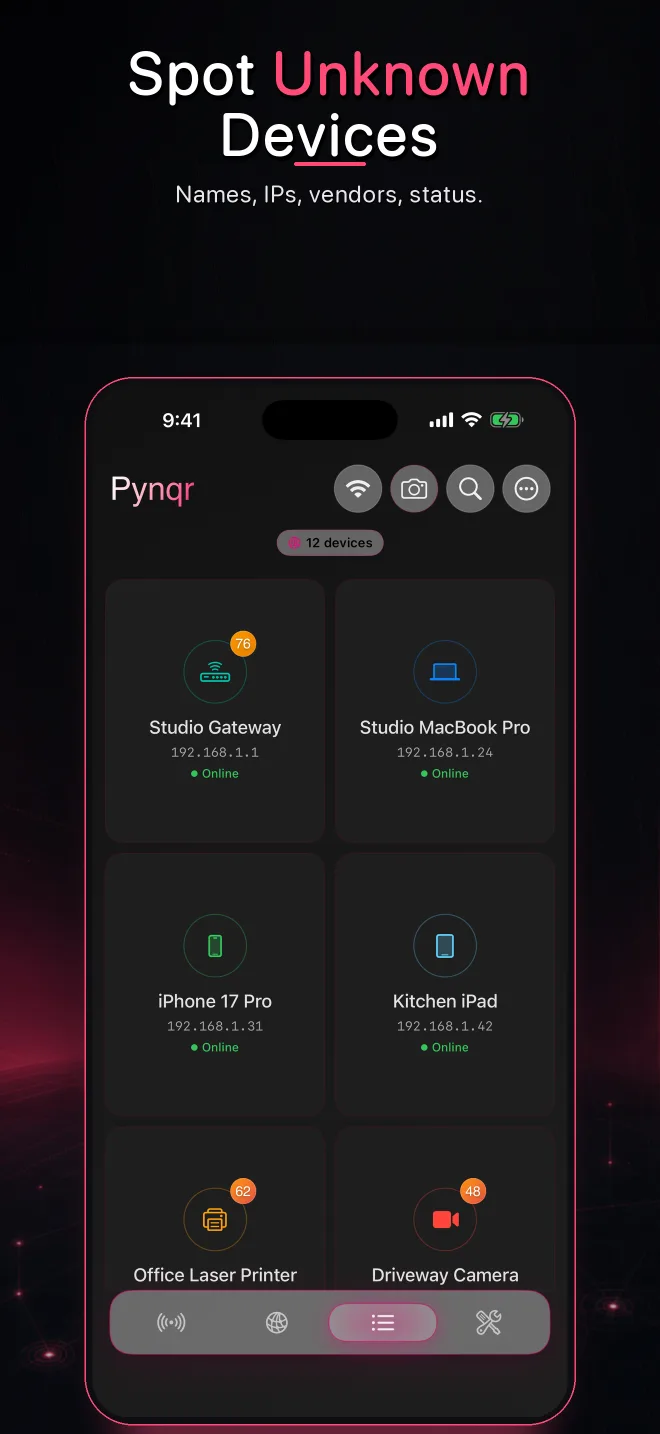
Find them faster in Pynqr
The Unknown filter lists only the devices Pynqr could not identify, so you can work through them one by one. Open a device to see its IP address, name, services and open ports, then label it once you know what it is.
Discover new unknown devices over time
An unknown device matters most when it is new. Label the devices you recognise, then scan regularly: anything new stands out immediately. With Pynqr Pro you can compare saved scans to see which devices are new or missing since the last time.
When the device still cannot be explained
Use your router to pause or block it. If nothing you own stops working, leave it blocked while you investigate. Review the router's admin password, the WiFi encryption mode, the WPS setting and guest-network access, and install router updates if available.
If you think the WiFi password was shared or guessed, choose a new WPA2 or WPA3 password and reconnect trusted devices one by one. When asking for help online, don't post screenshots that show your public IP address, personal device names or other identifiers.
What a scanner cannot prove
A local scanner cannot identify a person, read their intent or guarantee that a device is harmless. It helps you form and test a hypothesis. The best conclusion combines scan results, router records and a look around the house.
Frequently asked questions
Is an unknown device on my WiFi a hacker?
Rarely. Most unknown devices are your own smart-home gadgets, TVs or phones that don't announce a clear name. Treat it as a question to answer, not as proof of an intruder.
How do I find unknown devices on my network?
Run a network scan from a phone or computer on the same WiFi, then look at devices without a recognisable name or type. In Pynqr, the Unknown filter lists them. Compare them with your router's client list and switch suspects off to confirm.
Why can't my iPhone show MAC addresses?
iOS doesn't give apps access to other devices' hardware (MAC) addresses. iPhone scanners identify devices from names, services and open ports instead. Your router's client list usually does show MAC addresses.
How do I remove an unknown device from my WiFi?
Block or pause it in your router's app or admin page. If you think the WiFi password leaked, change it to a new WPA2 or WPA3 password and reconnect your own devices.
Find the unknown devices on your WiFi
Scan your network, filter for unknown devices and label them as you go. Scan results stay on your iPhone.